Pages

Monday, August 27, 2012

SQL Server FileStream GC Made Easy

In this post I want to explain FileStream System Procedures added in SQL Server 2012. Before jumping into this topic we will spend couple of mins to understand what is FileStream and the issues we might encounter with SQL Server 2008 R2 version?

FileStream is the ability to store unstructured data like documents, images on the file system but still be managed by SQL server.
Here are some of the advantages:
  • Store and retrieve BLOBs together with relational data in a single data store
  • Unstructured Data is included in backup and restore operations 
  • Crud operations on BLOBs and relation database occurs on the same DB Transactions
  • NTFS File stytem is faster compared to SQL Server especially with the File Operations
  • No limit on the file size but the applications can enforce this limit
  • .Net APIs like SQLFileStream can be leveraged to interact with FileStream Objects
By default this feature is disabled and can be enabled either by using SQL Statements or by Management Studio. I guess I am going out of this topic, lets come back.

I am sure who ever leveraged FileStream feature in SQL Server 2008 or 2008 R2 might faced issues or might be looking for a better way for initiating Garbage Collection. There is an interesting blog on FileStream Garbage Collection and how it works. 

With SQL Server 2012 we have new set of procedures which helps us to initiate the FileStream Garbage Collection:

sp_filestream_force_garbage_collection:
        - This system procedure forces the garbage collector to run and delete unneeded files. The FileStream garbage collector runs automatically but if you want to call explicitly you can do it by using this procedure.

sp_kill_filestream_non_transacted_handles:
        - This system procedure helps you to close the non transaction FileStream handlers.

These two System Procedures are very useful for any Database team leveraging FileStream Feature.

Tuesday, August 14, 2012

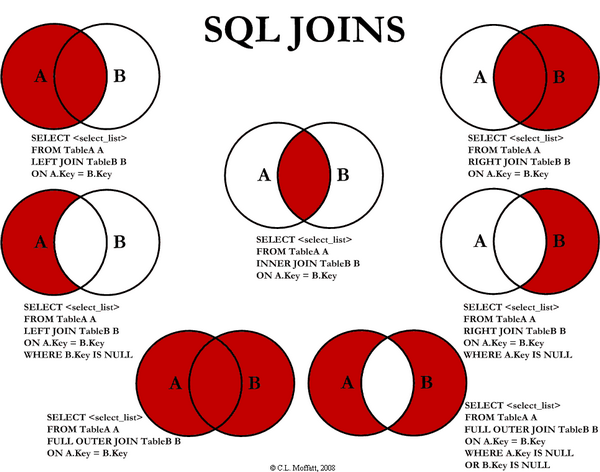
Visual Representation of SQL Joins

When I am browsing through net today, I found an interesting article on Visual Representation of SQL Joins. I always draw this image in most of my SQL Trainings to explain Joins. I am so surprised to see this image :)


Venn Diagrams are the easiest way to explain different types of joins like Inner, Left, Right and so on.

It also helps us to easily understand the Set Operations like Union, Intersect and Minus in any Relational Database Queries.

SharePoint Server 2013 Installation and Configuration

In this article I will show how to install & configure SharePoint 2013 Preview.

We can install SharePoint either on a Physical Server or an Virtual Box, In either of the case we have to make sure at least we have minimum Hardware & Software needs for SP 2013 as provided in the technet article.

In this article I am going to explain on how we can create a SharePoint 2013 Virtual Image for development/evaluation purpose only. We need the following software's to setup:

1. Oracle Virtual Box or VM Player
2. Windows Server 2012 Preview Download
3. SQL Server 2012 Enterprise Edition Download
4. SharePoint 2013 Preview Download

While I am writing this blog on how I setup my virtual server using Oracle Virtual Box, I found another blog "SharePoint 2013 Development Image" where the blogger explained in much granular level. I will suggest to refer to this on how to setup SharePoint 2013.

I should have found this blog even before I capture the images during my setup which might saved lots of time for me :)

The only difference I did during my SharePoint setup is installing Pres-Requisites manually one by one as my environment is in Isolated network with no access to Internet (for some security reasons). I might have done this though the command prompt.

Following are some of the screen shots:

1.SharePoint 2013 Central Administration Screen Shot


2. SharePoint 2013 Site Collection Screen Shot


I found one interesting spelling mistake in the setting page as shown below:


Once I evaluate certain feature, I will share it in this blog.


Windows Server 2012 - A Quick View

When I am evaluating windows 8 especially its Metro UI, I was wondering how will be the Windows Server UI looks like. Recently I get a chance to Setup Windows Server 2012 Release Candidate for evaluating SQL Server 2012 features and SharePoint 2013 features.

Here are the some of the screen shots on how Windows Server 2012 looks, A complete different experience compared to previous editions.

1. Login Screen


2. Landing Screen 

3. After installing other software's likeSQL Server 2012 & SharePoint 2013, you are going to see many more tiles for easy access as shown in the following image:

 4. Server Manager Screen - Now it helps to do most of the admin operations from here itself.


I liked the way Microsoft moving towards Metro UI for all their Apps including Windows Server!

Thursday, May 19, 2011

Tracking Web Page Load and Site Speed Using Google Analytics

Recently I came across one of the interesting feature "Track Page Load Time" in Google Analytics APIs.

This feature provides the metrics on the Page Load Time within the Site Speed Report. This gives us a good opportunity to identifying slow loading pages and fix them for improving the Search Engine Ranking as load time is one of the factor in the page ranking.

Following is the code snippet for capturing the Page Load Time:

<script type="text/javascript">
var _gaq = _gaq || [];
_gaq.push(['_setAccount', 'UA-XXXXX-X']);
_gaq.push(['_trackPageview'],['_trackPageLoadTime']);

(function() {
var ga = document.createElement('script'); ga.type = 'text/javascript'; ga.async = true;
ga.src = ('https:' == document.location.protocol ? 'https://ssl' : 'http://www') + '.google-analytics.com/ga.js';
var s = document.getElementsByTagName('script')[0]; s.parentNode.insertBefore(ga, s);
})();
</script>

Note that by default Site Speed Reports are not enabled. The function call _gaq.push['_trackPageLoadTime']) enables this report.

Wednesday, January 12, 2011

Windows 2008 R2 as a Virtual Server in Sun Virtual Box

Recently I am trying to setup Windows 2008 R2 as a Virtual Server using Sun Virtual Box on a Sony VAIO machine running Windows-7 64 bit version.

When ever I start the Virtual Server its keep on throwing an error as shown below:

"VT-x/AMD-V hardware acceleration has been enabled, but is not operational. You 64-bit guest will fail to detect a 64-bit CPU and will not be able to boot.

Please ensure that you have enabled vt-x/AMD-V properly in the BIOS of your host computer."

Then I restarted my machine and went into BIOS setting. Within the BIOS setting goto Intel Virtualization Technology (2nd Tab in BIOS setting), by default it is disable. We have to enable for this setting for making Virtualization to work.

I am using Sony VAIO model number PCG-71312L.

Tuesday, January 4, 2011

Silverlight 4 Training

Silverlight 4 training is available for download from Microsoft download site.

This training contains lots of Videos, Hands on labs which helps us to build the business applications.