We can use FusionCharts Free for displaying any graphical info from SharePoint as explained in the previous posts.
Now FusionCharts Free are completely free and open-source with source code.
Please have a look into it:
FusionCharts
Showing posts with label Fusion Charts. Show all posts
Showing posts with label Fusion Charts. Show all posts
Monday, September 7, 2009

Tuesday, August 4, 2009
JQuery to Build Fusion Charts for SharePoint List
This is very much similar to my earlier post "Fusion Charts for SharePoint List" where we used JavaScript for extracting the data from SharePoint List.
Here I will be explaining the similar concept using JQuery. As everyone aware that JQuery is getting very famous and even Microsoft announced that JQuery will be available as part of the Visual Studio 2010 with intellisence too.
Most of the times our customers expect to develop the charts with no time for preparing lots of dashboards or metrics. Lets consider that we have a Task List with all the tasks assigned to different users and are at the different status like:
1. Not Started
2. In Progress
3. Completed
4. Deferred
5. Waiting for someone else
At this point of time we may get lots of request for building the charts for this list data. I will be concentrating on generating the Pie Chart for Different Status available in this Task List, to identify how many tasks are there at different statuses. Following is the sample image showing the List Data:
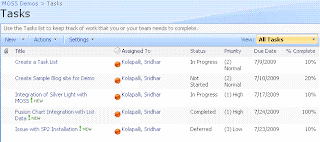
Following are the steps to implement the fusion charts:
1. Download Fusion Charts and upload to a document library. In this case I created a separate document library called FusionCharts where all the fusion charts are uploaded.
2. Come up with the RPC Protocol URL for extracting the data from the task list.
In our case following is the URL:
http://localhost/sites/MOSSDemos/_vti_bin/owssvr.dll?Cmd=Display&Query=Status&List=%7B7C6C7072%2D12B5%2D4B05%2D90A4%2D052160CC8F74%7D&XMLDATA=TRUE
Note that we are extracting only the Status field from the Task List.
And the List id is the Task List Guiid within the SharePoint Site.
3. Download JQuery script from the site and upload to the Shared Documents.
4. Copy the following javascript which uses JQuery Script into the content editor web part:
<!-- JScript from shared documents -->
<script type="text/javascript" src="/Shared Documents/jquery-1.3.2.min.js"></script>
<!-- Div tag for appending the graph -->
<div id="divGraph"></div>
<script type="text/javascript">
// Declare all local variables
var iNotStarted = 0;
var iInProgress = 0;
var iCompleted = 0;
var iDeferred = 0;
var iWaitingonsomeoneelse = 0;
var sObjectData = "";
// Call the function once the document is loaded
$(document).ready(function() {
var sSiteUrl = "http://localhost/sites/MOSSDemos/_vti_bin/owssvr.dll?";
// This Parameter Contains List Id too
var sCmdParameters = "Cmd=Display&Query=Status&List=%7B7C6C7072%2D12B5%2D4B05%2D90A4%2D052160CC8F74%7D&XMLDATA=TRUE"
// Ajax call using a JavaScript
$.ajax({
url: sSiteUrl + sCmdParameters,
type: "GET",
dataType: "xml",
data: "",
complete: processResult,
contentType: "text/xml; charset=\"utf-8\""
});
});
function processResult(xData, status) {
//alert(xData.responseXML.xml);
var NS = '#RowsetSchema'
$(xData.responseXML).children(1).children(1).children().each(function() {
var Status = $(this).attr("ows_Status");
switch (Status) {
case "Not Started":
iNotStarted = iNotStarted + 1; break;
case "In Progress":
iInProgress = iInProgress + 1; break;
case "Completed":
iCompleted = iCompleted + 1; break;
case "Deferred":
iDeferred = iDeferred + 1; break;
case "Waiting on someone else":
iWaitingonsomeoneelse = iWaitingonsomeoneelse + 1; break;
default:
break;
}
});
// Create the Object for the Fusion Chart
// Opening Object Tag
sObjectData = "<object classid=\"clsid:D27CDB6E-AE6D-11cf-96B8-444553540000\" ";
sObjectData += "codebase=\"http://download.macromedia.com/pub/shockwave/cabs/flash/swflash.cab#version=6,0,0,0\" ";
sObjectData += "width=\"400\" ";
sObjectData += "height=\"300\" ";
sObjectData += "id=\"Pie3D\"> ";
// Setting Parameters
sObjectData += "<param name=\"movie\" value=\"http://localhost/sites/MOSSDemos/FusionCharts/FusionCharts/FCF_Pie3D.swf?chartWidth=400&chartHeight=300\"> ";
sObjectData += "<param name=\"FlashVars\" value=\"&dataXML=<graph caption='Tasks By Status Percentage' ";
sObjectData += "xAxisName='Site' yAxisName='Qty by Site' showNames='1' decimalPrecision='1' showPercentageInLabel='1' formatNumberScale='0' ";
sObjectData += "pieYScale='70' pieBorderAlpha='40' pieFillAlpha='80' pieSliceDepth='15'> ";
sObjectData += "<set name='Not Started' value='" + iNotStarted + "' color='#660033' link='' /> ";
sObjectData += "<set name='Completed' value='" + iInProgress + "' color='#3399ff' link='' /> ";
sObjectData += "<set name='In Progress' value='" + iCompleted + "' color='#99cc99' link='' /> ";
sObjectData += "<set name='Deferred' value='" + iDeferred + "' color='#00ff99' link='' /> ";
sObjectData += "<set name='Waiting for someone else' value='" + iWaitingonsomeoneelse + "' color='#000033' link='' /> ";
sObjectData += "</graph>\"> ";
sObjectData += "<param name=\"quality\" value=\"high\"> ";
sObjectData += "</object> ";
$("#divGraph").append(sObjectData);
}
</script>
Following are the lines to be changed in the script:
A. Location of the FCF_Pie3D.swf file within the "object" tag.
B. Site Url in the variable "sSiteUrl".
C. Task List Id in the variable "sCmdParameters".
D. Path of the JScript (Assumed it is available in the Shared Documents)
With this, A Pie chart representations the Task Data within the SharePoint List as shown below:

Here I will be explaining the similar concept using JQuery. As everyone aware that JQuery is getting very famous and even Microsoft announced that JQuery will be available as part of the Visual Studio 2010 with intellisence too.
Most of the times our customers expect to develop the charts with no time for preparing lots of dashboards or metrics. Lets consider that we have a Task List with all the tasks assigned to different users and are at the different status like:
1. Not Started
2. In Progress
3. Completed
4. Deferred
5. Waiting for someone else
At this point of time we may get lots of request for building the charts for this list data. I will be concentrating on generating the Pie Chart for Different Status available in this Task List, to identify how many tasks are there at different statuses. Following is the sample image showing the List Data:

Following are the steps to implement the fusion charts:
1. Download Fusion Charts and upload to a document library. In this case I created a separate document library called FusionCharts where all the fusion charts are uploaded.
2. Come up with the RPC Protocol URL for extracting the data from the task list.
In our case following is the URL:
http://localhost/sites/MOSSDemos/_vti_bin/owssvr.dll?Cmd=Display&Query=Status&List=%7B7C6C7072%2D12B5%2D4B05%2D90A4%2D052160CC8F74%7D&XMLDATA=TRUE
Note that we are extracting only the Status field from the Task List.
And the List id is the Task List Guiid within the SharePoint Site.
3. Download JQuery script from the site and upload to the Shared Documents.
4. Copy the following javascript which uses JQuery Script into the content editor web part:
<!-- JScript from shared documents -->
<script type="text/javascript" src="/Shared Documents/jquery-1.3.2.min.js"></script>
<!-- Div tag for appending the graph -->
<div id="divGraph"></div>
<script type="text/javascript">
// Declare all local variables
var iNotStarted = 0;
var iInProgress = 0;
var iCompleted = 0;
var iDeferred = 0;
var iWaitingonsomeoneelse = 0;
var sObjectData = "";
// Call the function once the document is loaded
$(document).ready(function() {
var sSiteUrl = "http://localhost/sites/MOSSDemos/_vti_bin/owssvr.dll?";
// This Parameter Contains List Id too
var sCmdParameters = "Cmd=Display&Query=Status&List=%7B7C6C7072%2D12B5%2D4B05%2D90A4%2D052160CC8F74%7D&XMLDATA=TRUE"
// Ajax call using a JavaScript
$.ajax({
url: sSiteUrl + sCmdParameters,
type: "GET",
dataType: "xml",
data: "",
complete: processResult,
contentType: "text/xml; charset=\"utf-8\""
});
});
function processResult(xData, status) {
//alert(xData.responseXML.xml);
var NS = '#RowsetSchema'
$(xData.responseXML).children(1).children(1).children().each(function() {
var Status = $(this).attr("ows_Status");
switch (Status) {
case "Not Started":
iNotStarted = iNotStarted + 1; break;
case "In Progress":
iInProgress = iInProgress + 1; break;
case "Completed":
iCompleted = iCompleted + 1; break;
case "Deferred":
iDeferred = iDeferred + 1; break;
case "Waiting on someone else":
iWaitingonsomeoneelse = iWaitingonsomeoneelse + 1; break;
default:
break;
}
});
// Create the Object for the Fusion Chart
// Opening Object Tag
sObjectData = "<object classid=\"clsid:D27CDB6E-AE6D-11cf-96B8-444553540000\" ";
sObjectData += "codebase=\"http://download.macromedia.com/pub/shockwave/cabs/flash/swflash.cab#version=6,0,0,0\" ";
sObjectData += "width=\"400\" ";
sObjectData += "height=\"300\" ";
sObjectData += "id=\"Pie3D\"> ";
// Setting Parameters
sObjectData += "<param name=\"movie\" value=\"http://localhost/sites/MOSSDemos/FusionCharts/FusionCharts/FCF_Pie3D.swf?chartWidth=400&chartHeight=300\"> ";
sObjectData += "<param name=\"FlashVars\" value=\"&dataXML=<graph caption='Tasks By Status Percentage' ";
sObjectData += "xAxisName='Site' yAxisName='Qty by Site' showNames='1' decimalPrecision='1' showPercentageInLabel='1' formatNumberScale='0' ";
sObjectData += "pieYScale='70' pieBorderAlpha='40' pieFillAlpha='80' pieSliceDepth='15'> ";
sObjectData += "<set name='Not Started' value='" + iNotStarted + "' color='#660033' link='' /> ";
sObjectData += "<set name='Completed' value='" + iInProgress + "' color='#3399ff' link='' /> ";
sObjectData += "<set name='In Progress' value='" + iCompleted + "' color='#99cc99' link='' /> ";
sObjectData += "<set name='Deferred' value='" + iDeferred + "' color='#00ff99' link='' /> ";
sObjectData += "<set name='Waiting for someone else' value='" + iWaitingonsomeoneelse + "' color='#000033' link='' /> ";
sObjectData += "</graph>\"> ";
sObjectData += "<param name=\"quality\" value=\"high\"> ";
sObjectData += "</object> ";
$("#divGraph").append(sObjectData);
}
</script>
Following are the lines to be changed in the script:
A. Location of the FCF_Pie3D.swf file within the "object" tag.
B. Site Url in the variable "sSiteUrl".
C. Task List Id in the variable "sCmdParameters".
D. Path of the JScript (Assumed it is available in the Shared Documents)
With this, A Pie chart representations the Task Data within the SharePoint List as shown below:

Wednesday, July 22, 2009
Fusion Charts for SharePoint List
Most of the time when ever we have data, end users will expect some kind of reports/charts.
For example when we are using tasks, we may have to provide a pie chart indicating the different status in the pie chart. Or We may have to show a visual indicator for the percentage completion for each task item.
We can create the charts by using any of the tools on MOSS 2007:
1. Excel Services (Excel Web Access)
2. Reporting Services
3. Silver Light, etc
In order to use these features we should have MOSS 2007 License and also some environments there will be restrictions on custom coding. By keeping this points in mind I came up with this Post.
Here we will see how we can utilize the Fusion Charts for the SharePoint List (Task List). Following image shows the sample Task List:
Following are the steps to implement the fusion charts:
1. Download Fusion Charts and upload to a document library. In this case I created a separate document library called FusionCharts where all the fusion charts are uploaded.
2. Come up with the RPC Protocol URL for extracting the data from the task list.
In our case following is the URL:
http://localhost/sites/MOSSDemos/_vti_bin/owssvr.dll?Cmd=Display&Query=Status&List=%7B7C6C7072%2D12B5%2D4B05%2D90A4%2D052160CC8F74%7D&XMLDATA=TRUE
Note that we are extracting only the Status field from the Task List.
And the List id is the Task List Guiid within the SharePoint Site.
3. Copy the following javascript into the content editor web part:
<script language="javascript">
function fnXmlHttp(AspFileName,strXML)
{
var objXMLHttp= new ActiveXObject("Microsoft.XMLHTTP");
var sResponse;
try
{
objXMLHttp.open("POST",AspFileName,false) //POSTING THE DATA
objXMLHttp.setRequestHeader("Content-Type", "text/xml");
objXMLHttp.send(strXML)
}
catch(e)
{
}
if (parseInt(objXMLHttp.Status) != 200)
{
sResponse = "N,Cannot connect to the Server.";
}
else
{
sResponse=new String(objXMLHttp.responseText);
if (sResponse == "")
{
sResponse = "N,Error at server. Please contact administrator.";
}
}
return sResponse;
}
var sXML;
var bLoad;
var sSiteUrl = "http://localhost/sites/MOSSDemos/_vti_bin/owssvr.dll?";
// This Parameter Contains List Id too
var sCmdParameters = "Cmd=Display&Query=Status&List=%7B7C6C7072%2D12B5%2D4B05%2D90A4%2D052160CC8F74%7D&XMLDATA=TRUE"
// Request the RPC Call
sXML = fnXmlHttp(sSiteUrl + sCmdParameters,"");
// Create the XML Object Instance
var objXML = new ActiveXObject("MSXML2.DOMDocument");
// Load the XML
bLoad = objXML.loadXML(sXML);
// Check whether the XML is loaded into the document
if(bLoad)
{
// Declare all local variables
var iNotStarted = 0;
var iInProgress = 0;
var iCompleted = 0;
var iDeferred = 0;
var iWaitingonsomeoneelse = 0;
var sObjectData;
var objData = objXML.documentElement.childNodes(1);
// Loop through all the variables
for (i=0;i<objData.childNodes.length;i++)
{
var Status = objData.childNodes(i).attributes.getNamedItem("ows_Status").value;
switch(Status)
{
case "Not Started":
iNotStarted = iNotStarted + 1; break;
case "In Progress":
iInProgress = iInProgress + 1; break;
case "Completed":
iCompleted = iCompleted + 1; break;
case "Deferred":
iDeferred = iDeferred + 1; break;
case "Waiting on someone else":
iWaitingonsomeoneelse = iWaitingonsomeoneelse + 1; break;
default:
break;
}
}
// Create the Object for the Fusion Chart
// Opening Object Tag
sObjectData = "<object classid=\"clsid:D27CDB6E-AE6D-11cf-96B8-444553540000\" ";
sObjectData += "codebase=\"http://download.macromedia.com/pub/shockwave/cabs/flash/swflash.cab#version=6,0,0,0\" ";
sObjectData += "width=\"400\" ";
sObjectData += "height=\"300\" ";
sObjectData += "id=\"Pie3D\"> ";
// Setting Parameters
sObjectData += "<param name=\"movie\" value=\"http://localhost/sites/MOSSDemos/FusionCharts/FusionCharts/FCF_Pie3D.swf?chartWidth=400&chartHeight=300\"> ";
sObjectData += "<param name=\"FlashVars\" value=\"&dataXML=<graph caption='Tasks By Status Percentage' ";
sObjectData += "xAxisName='Site' yAxisName='Qty by Site' showNames='1' decimalPrecision='1' showPercentageInLabel='1' formatNumberScale='0' ";
sObjectData += "pieYScale='70' pieBorderAlpha='40' pieFillAlpha='80' pieSliceDepth='15'> ";
sObjectData += "<set name='Not Started' value='" + iNotStarted + "' color='#660033' link='' /> ";
sObjectData += "<set name='Completed' value='" + iInProgress + "' color='#3399ff' link='' /> ";
sObjectData += "<set name='In Progress' value='" + iCompleted + "' color='#99cc99' link='' /> ";
sObjectData += "<set name='Deferred' value='" + iDeferred + "' color='#00ff99' link='' /> ";
sObjectData += "<set name='Waiting for someone else' value='" + iWaitingonsomeoneelse + "' color='#000033' link='' /> ";
sObjectData += "</graph>\"> ";
sObjectData += "<param name=\"quality\" value=\"high\"> ";
sObjectData += "</object> ";
document.write(sObjectData);
}
</script>
Following are the lines to be changed in the script:
A. Location of the FCF_Pie3D.swf file within the "object" tag.
B. Site Url in the variable "sSiteUrl".
C. Task List Id in the variable "sCmdParameters".
With this, A Pie chart representations the Task Data within the SharePoint List as shown below:
For example when we are using tasks, we may have to provide a pie chart indicating the different status in the pie chart. Or We may have to show a visual indicator for the percentage completion for each task item.
We can create the charts by using any of the tools on MOSS 2007:
1. Excel Services (Excel Web Access)
2. Reporting Services
3. Silver Light, etc
In order to use these features we should have MOSS 2007 License and also some environments there will be restrictions on custom coding. By keeping this points in mind I came up with this Post.
Here we will see how we can utilize the Fusion Charts for the SharePoint List (Task List). Following image shows the sample Task List:
Following are the steps to implement the fusion charts:
1. Download Fusion Charts and upload to a document library. In this case I created a separate document library called FusionCharts where all the fusion charts are uploaded.
2. Come up with the RPC Protocol URL for extracting the data from the task list.
In our case following is the URL:
http://localhost/sites/MOSSDemos/_vti_bin/owssvr.dll?Cmd=Display&Query=Status&List=%7B7C6C7072%2D12B5%2D4B05%2D90A4%2D052160CC8F74%7D&XMLDATA=TRUE
Note that we are extracting only the Status field from the Task List.
And the List id is the Task List Guiid within the SharePoint Site.
3. Copy the following javascript into the content editor web part:
<script language="javascript">
function fnXmlHttp(AspFileName,strXML)
{
var objXMLHttp= new ActiveXObject("Microsoft.XMLHTTP");
var sResponse;
try
{
objXMLHttp.open("POST",AspFileName,false) //POSTING THE DATA
objXMLHttp.setRequestHeader("Content-Type", "text/xml");
objXMLHttp.send(strXML)
}
catch(e)
{
}
if (parseInt(objXMLHttp.Status) != 200)
{
sResponse = "N,Cannot connect to the Server.";
}
else
{
sResponse=new String(objXMLHttp.responseText);
if (sResponse == "")
{
sResponse = "N,Error at server. Please contact administrator.";
}
}
return sResponse;
}
var sXML;
var bLoad;
var sSiteUrl = "http://localhost/sites/MOSSDemos/_vti_bin/owssvr.dll?";
// This Parameter Contains List Id too
var sCmdParameters = "Cmd=Display&Query=Status&List=%7B7C6C7072%2D12B5%2D4B05%2D90A4%2D052160CC8F74%7D&XMLDATA=TRUE"
// Request the RPC Call
sXML = fnXmlHttp(sSiteUrl + sCmdParameters,"");
// Create the XML Object Instance
var objXML = new ActiveXObject("MSXML2.DOMDocument");
// Load the XML
bLoad = objXML.loadXML(sXML);
// Check whether the XML is loaded into the document
if(bLoad)
{
// Declare all local variables
var iNotStarted = 0;
var iInProgress = 0;
var iCompleted = 0;
var iDeferred = 0;
var iWaitingonsomeoneelse = 0;
var sObjectData;
var objData = objXML.documentElement.childNodes(1);
// Loop through all the variables
for (i=0;i<objData.childNodes.length;i++)
{
var Status = objData.childNodes(i).attributes.getNamedItem("ows_Status").value;
switch(Status)
{
case "Not Started":
iNotStarted = iNotStarted + 1; break;
case "In Progress":
iInProgress = iInProgress + 1; break;
case "Completed":
iCompleted = iCompleted + 1; break;
case "Deferred":
iDeferred = iDeferred + 1; break;
case "Waiting on someone else":
iWaitingonsomeoneelse = iWaitingonsomeoneelse + 1; break;
default:
break;
}
}
// Create the Object for the Fusion Chart
// Opening Object Tag
sObjectData = "<object classid=\"clsid:D27CDB6E-AE6D-11cf-96B8-444553540000\" ";
sObjectData += "codebase=\"http://download.macromedia.com/pub/shockwave/cabs/flash/swflash.cab#version=6,0,0,0\" ";
sObjectData += "width=\"400\" ";
sObjectData += "height=\"300\" ";
sObjectData += "id=\"Pie3D\"> ";
// Setting Parameters
sObjectData += "<param name=\"movie\" value=\"http://localhost/sites/MOSSDemos/FusionCharts/FusionCharts/FCF_Pie3D.swf?chartWidth=400&chartHeight=300\"> ";
sObjectData += "<param name=\"FlashVars\" value=\"&dataXML=<graph caption='Tasks By Status Percentage' ";
sObjectData += "xAxisName='Site' yAxisName='Qty by Site' showNames='1' decimalPrecision='1' showPercentageInLabel='1' formatNumberScale='0' ";
sObjectData += "pieYScale='70' pieBorderAlpha='40' pieFillAlpha='80' pieSliceDepth='15'> ";
sObjectData += "<set name='Not Started' value='" + iNotStarted + "' color='#660033' link='' /> ";
sObjectData += "<set name='Completed' value='" + iInProgress + "' color='#3399ff' link='' /> ";
sObjectData += "<set name='In Progress' value='" + iCompleted + "' color='#99cc99' link='' /> ";
sObjectData += "<set name='Deferred' value='" + iDeferred + "' color='#00ff99' link='' /> ";
sObjectData += "<set name='Waiting for someone else' value='" + iWaitingonsomeoneelse + "' color='#000033' link='' /> ";
sObjectData += "</graph>\"> ";
sObjectData += "<param name=\"quality\" value=\"high\"> ";
sObjectData += "</object> ";
document.write(sObjectData);
}
</script>
Following are the lines to be changed in the script:
A. Location of the FCF_Pie3D.swf file within the "object" tag.
B. Site Url in the variable "sSiteUrl".
C. Task List Id in the variable "sCmdParameters".
With this, A Pie chart representations the Task Data within the SharePoint List as shown below:
Subscribe to:
Posts (Atom)